

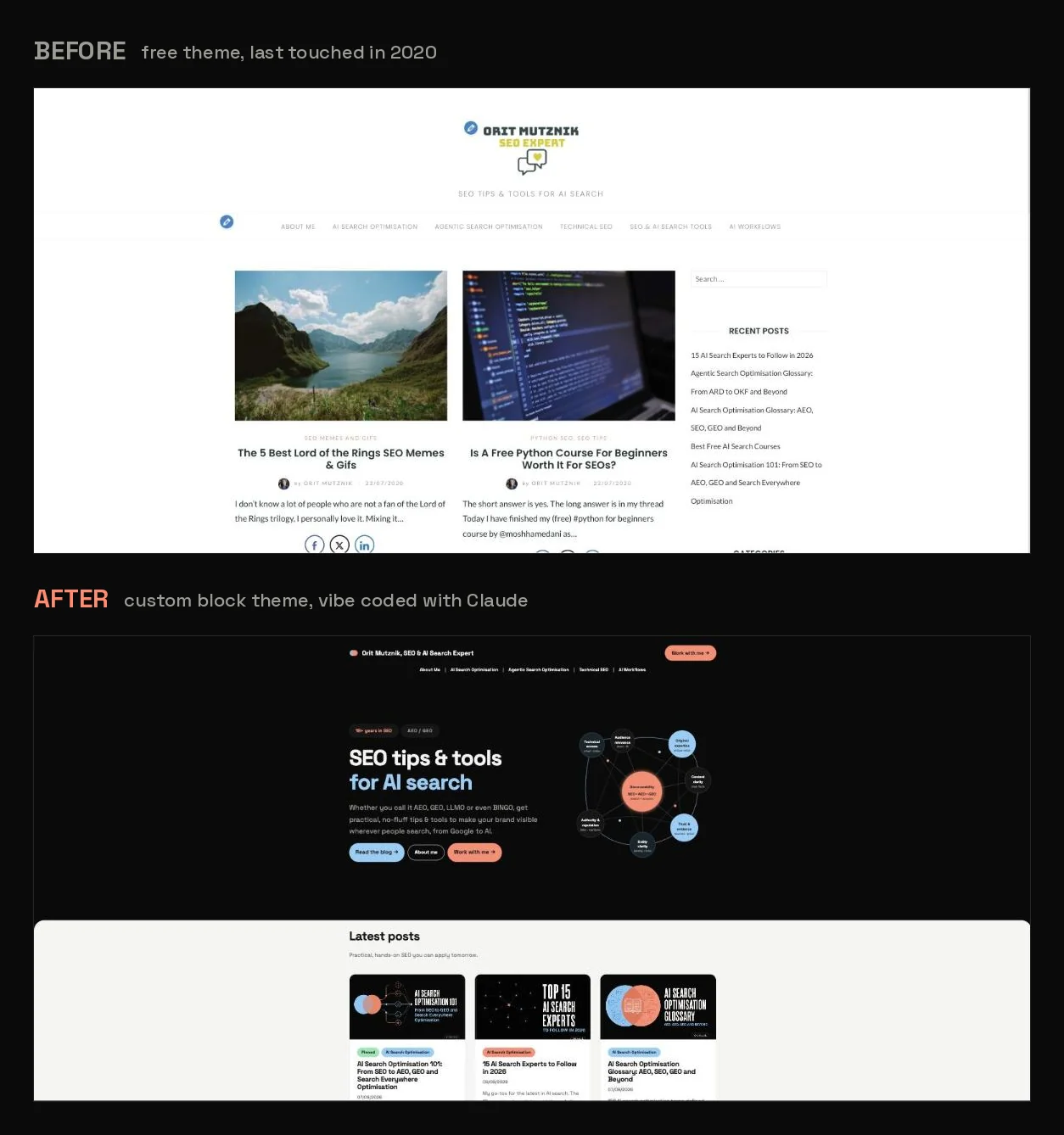
Most in-house SEOs and plenty of freelancers and agency owners have a personal site they gave up on years ago and have never mentioned since. Mine sat untouched for 4 years.
I vibe coded it back into existence with no code, no developer, no page builder and no MCP server. I talk to my website now and it does what I ask. Here is the backstory in one section, then the workflow, then the skill that runs it.
Why my own site sat dead for 4 years
Staging is what killed it. Ideating a post took an hour, writing it took a day and staging it in WordPress regularly took longer than both put together. That ratio is what breaks you, because the tedious half is the bit standing between you and publishing. So I focused on my employers’ and clients’ sites and let mine go.
The answer had to stay in WordPress. Friends in this industry build beautifully and publish their stacks openly: Suganthan Mohanadasan’s runs on Astro 5, Keystatic, Tailwind v4 and Cloudflare Workers. I have huge respect for his work and it does not sound easy to me, so I needed something closer to the free-theme-and-drag-things-around habit I already had, or I would never keep it up.
Here is the first thing I actually typed, as is:
I want to redesign my wordpress site. I’m looking for a connector to some service that would work with claude and propose themes. I managed to install a plugin called wpwriter connector to chatgpt but I don’t think it can do that. What do you recommend.
Look at the assumption within that message: I was looking for a connector, I had already installed WPWriter (free version) to test connecting ChatGPT to WordPress and I was ready to pay for something better. I assumed that if no paid connector could do it, the answer would have to be an MCP server, because every guide on connecting an AI to WordPress opens by telling you to install one.
The answer came back:
None of that is necessary. WordPress already ships with everything we need to do this.
Before any of it touched WordPress, I asked for design directions and got 4 finished HTML pages I could open in a browser, one of which became the live theme. Seeing 4 finished pages beats reading 4 descriptions of them, because you know within seconds which is yours.
That is the whole backstory. The rest of this post is the workflow.
TL;DR: How to vibe code your WordPress site
- You can download my free WordPress vibe coding skill and skip the reading: It does the connecting and the publishing with you. Free, no lead form or email required
- Skip the MCP server: The connection is already in WordPress. The REST API is in core and on by default, while an application password gives a tool its own key. Nothing to install, nothing to pay for
- Set it up once, in about 15 minutes: Generate an application password, unblock it if your security plugin hides it, then ask Claude to test the connection. The steps are below
- Then write and let Claude do the rest: You write markdown, it converts, builds the schema, pushes it live and fixes what looks wrong. The loop is here
- Know the three routes before you start: Content, templates, menus and site styles go over the API instantly, anything in a theme file needs a zip upload and global plugin settings still need wp-admin. The table settles it
- Use Claude in Chrome: It lets Claude see the page you are looking at and click through wp-admin itself, which is what turns “the tiles look wrong” into something it can actually fix
- End every session with a handover file: It is what makes your second conversation as productive as your first, so let Claude write it for you
What you need
No code editor, no terminal, no GitHub, no MCP server. This is the entire thing:
| Tool | What it did | Cost |
|---|---|---|
| Claude Cowork | The redesign, the theme, the templates, every WP change since | Pro, then Max |
| Claude in Chrome | Let Claude see and click what I was seeing, which is what made troubleshooting work | Included |
| ChatGPT Pro | Cover images and the design guidelines file behind them | Pro |
| WordPress REST API | The connection, built into WordPress already | Free |
| Application password | The key Claude uses, generated in wp-admin | Free |
| SublimeText | Where I write, in plain markdown | Free |
Two things worth mentioning, because both surprised me:
- I use Claude Cowork: Most write-ups of this kind assume Claude Code, the developer tool you drive from a terminal. Cowork works with folders and files the way I already think about them, which is why none of this needed a developer workflow first.
- The initial redesign maxed out my Pro subscription: Rebuilding a whole theme in one stretch is heavy, so I upgraded to Max part way through. Everything since sits inside a normal week, so budget for the build being the expensive part.
The Claude in Chrome extension turned out to be critical. It lets Claude look at a page in my browser and click things in it, the same way I would. Without it, Claude was working from my description of the page and had to take my word for what was wrong with it.
How you set it up
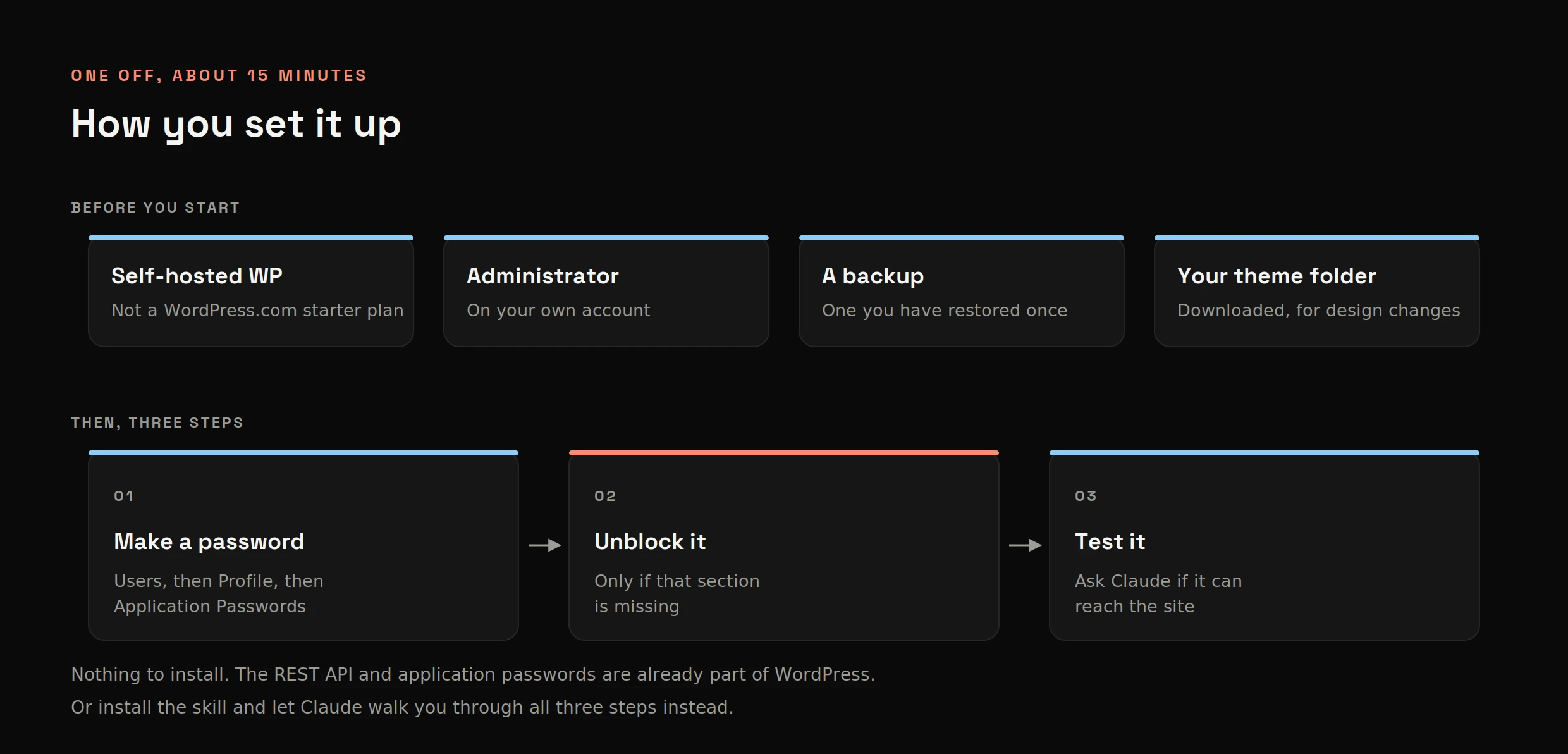
It takes about 15 minutes and you only ever do it once. If you would rather not do it by hand at all, the skill walks you through this whole section and does the checking itself.
Before you start
Four things need to be true before any of this works. None of them is a step and none takes longer than a minute to confirm:
- A self-hosted WordPress site: The kind you or your host installed, with wp-admin at
yoursite.com/wp-admin. WordPress.com’s lower plans lock down the parts this relies on and some managed hosts do too. Your host can tell you in one message - Administrator on your own account: Lower roles can hold an application password and still cannot touch templates or settings, so you hit walls you cannot explain
- A backup you have actually restored once: An untested backup is a feeling. You are about to give a tool real write access
- Your active theme downloaded to a folder: Only needed if you want design changes. Nothing inside a theme file is reachable over the API, so Claude needs the files themselves
Claude can confirm the first two for you once it is talking to your site and it will say so plainly if either is wrong.
What is actually doing the connecting
Two things, both already sitting on your site:
- The REST API: Part of WordPress core, on by default on a standard self-hosted install, giving your posts, pages, media, templates, menus, settings and site styles their own web addresses so a tool can read and change them. No setup, because it came with the software you already have
- An application password: Also built in, it hands a tool its own key without giving it your real login and you generate it by clicking a button in your profile
Put those 2 together and every new Claude conversation you open can connect to your site and change anything on the writable side of this list, with nothing to install, configure or pay for. I have never written an API call and I did not know what REST meant when I started.
MCP earns its place across many client sites. For one site you own, it is a layer you do not need and I would have paid for it out of pure ignorance.
I did not work the sequence out either. I asked:
I want to connect you to my WordPress site so you can make changes to it. Walk me through what you need from me, one step at a time, and assume I am not a developer.
Step 2 below is the one that stops most people before they start.
Step 1: Generate an application password
Go to Users, then Profile, then Application Passwords. Name it something you will recognise, such as “Claude” and click Add New Application Password. WP shows you 24 characters in 6 groups, once and never again. Keep the spaces, they are part of it.
Claude did this bit for me through Claude in Chrome, clicking through wp-admin while I watched, then saving the result into my project folder:
wp-credentials.md

username: yourusername
password: XXXX XXXX XXXX XXXX XXXX XXXX
Every new conversation gets pointed at that file, so each reaches the site without me digging the password out. Keep it out of anything you sync publicly. Without the extension, generate it yourself or ask for click-by-click instructions.
Step 2: Turn application passwords back on if the section is missing
If there is no Application Passwords section on your profile, something has disabled it. Mine was Wordfence, which switches them off by default, under Wordfence, then All Options, then Brute Force Protection, where you untick “Disable WordPress application passwords”. It cost me a solid hour, because the error message sends you to Login Security, where the setting does not live.
If you do not run Wordfence, the usual suspects are another security plugin with an equivalent hardening switch, a managed host disabling it platform-wide, a snippet using the wp_application_passwords_available filter, or a WordPress older than 5.6. Describe what you are seeing and Claude works through those with you. With Claude in Chrome it opens the settings pages and looks for itself, which is how mine got found.
Step 3: Confirm the connection works
Give Claude your site URL, username and application password, then ask:
Here is my site URL, my WordPress username and the application password I just generated. Check the connection works and tell me what you can and cannot access.
Claude wrote the call, ran it and told me in plain English that it was in with administrator access. This is what it ran. I have never typed it myself:
curl -u "USERNAME:APP PASSWORD" "https://yoursite.com/wp-json/wp/v2/users/me?context=edit"Back comes your own name with "roles":["administrator"], which proves the key and the permissions. Claude reads any error for you: A 401 means the password is wrong and a 403 usually means a security plugin is in the way.
That is the setup. Point Claude at the folder holding your theme files as well and the design is in reach too. If you install the skill, it runs these three steps with you and writes the credentials file itself, so you can skip straight to that.
How it runs once it is connected
Setup is a one-off. What follows is the loop you run every time you publish.
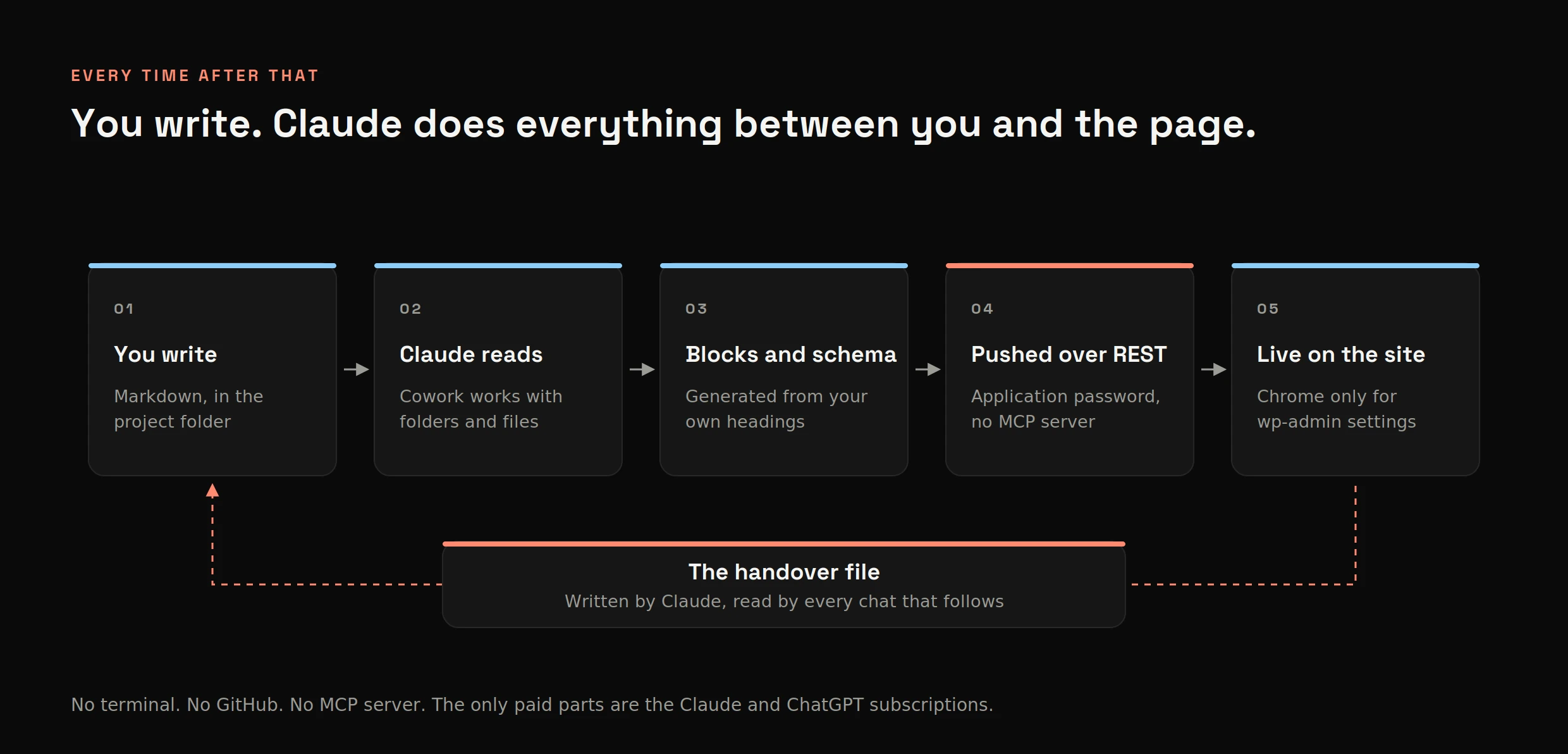
You write in markdown. Claude reads the folder, turns it into WordPress blocks, pushes it over the API and tells you what landed. Anything that only exists in wp-admin, it clicks through with you in Chrome.
Schema is worth explaining, because most people hand it to a plugin and never think about it again. It is a hidden summary inside the page that tells Google and AI search engines what your content actually is: This is an FAQ, these are the questions, this is a set of instructions. Write it separately and it goes out of date the moment you edit the page. Claude builds it out of the headings you already wrote, so when you change a heading the schema changes with it and the two can never say different things.
The loop is the part that matters: Any single conversation can rebuild a theme or publish a post, but only the handover file stops the next one starting from nothing.
Get the free skill: redesign and run your WordPress site with Claude
A skill is a set of instructions you write down once, in plain English, that Claude loads whenever what you type matches it. No code, no config, one file. It means you never re-explain the same workflow at the start of a conversation. I publish the ones I use, including my SEO audit skill and the AI search visibility audit.
Download wordpress-via-claude. Free, no lead form or email required.
What it does once you have installed it
Open a new chat, say something like “connect Claude to my WordPress site” or “redesign my site” and the skill loads itself. From there it:
- Gets you connected: Asks for your site URL, your WordPress username and an application password, tests the connection and tells you in plain English whether it worked and what it can reach
- Works out why the Application Passwords section is missing when it is, starting with Wordfence and going down the list of usual suspects
- Saves the credentials into a file in your folder, so every later chat connects without you digging the password out
- Tells you which of the three routes a change needs, so you find out in a sentence whether it is an API change, a theme upload or a click in wp-admin
- Checks the block theme trap before it blames your cache, which is the single biggest time sink on a block theme
- Reads a published post before it edits it, so it cannot overwrite something you changed in the editor without noticing
- Publishes properly: Blocks, schema built from your own headings, SEO fields set in the same pass and a check against what the server actually stored
- Writes your handover file at the end, so your next conversation starts informed
What you need before you install it
Three things to check, none of them about the skill itself:
- A paid Claude plan: Skills are not available on the free plan
- The four prerequisites above: Self-hosted WordPress, administrator access, a backup and your theme folder. The skill will tell you if one of them is wrong, but it cannot fix them for you
- A folder Claude can read and write: This is where the credentials file and the handover file end up
Install it in 3 steps
Download the file → upload it to Claude → say what you want.
- Download the file: It is plain text, so read it first if you would rather see what you are installing. It is one page and there is nothing hidden in it
- Upload it to Claude: Open Settings and find the Skills panel, which sits under Capabilities or Features depending on your plan. Upload the file and Claude reads the name and the description, then the skill appears in your list with nothing else to configure. Or skip the upload entirely, drop the file in your project folder and tell the chat to read it
- Say what you want: “Connect Claude to my WordPress site” starts the setup, while “push this post to WordPress” and “my change did not show up” both fire it later on
Then change it to suit you
The file is one page of plain English, so ask Claude to edit it once you know what your own site needs: Your house style rules, the plugin that behaves oddly on your install, the trap that cost you an afternoon. Say “add this to the wordpress-via-claude skill and give me the file back” and re-upload it. Mine has been rewritten about a dozen times and every rewrite came from something going wrong.
If you would rather understand it before you run it, the rest of this post is where it came from.
What you can change by talking to Claude and what to do when it does not show
This table is what I wish I had on day one, because it is the difference between “Claude cannot do that” and “that one needs a different route”.
| What you want to change | Examples | How it happens |
|---|---|---|
| Content and design stored in the database | Posts, pages, drafts, media, templates, header and footer, menus, site styles, custom CSS, per-post SEO fields | Over the REST API. Ask and it is live |
| Anything inside a theme file | Fonts, icons and favicons (plus functions.php, style.css and theme.json) | Claude edits the files and gives you a zip, then tells you whether it can upload it through Claude in Chrome or whether you do it yourself in Appearance, Themes, Add themes, Upload theme |
| Settings a plugin keeps to itself | Global SEO plugin settings, plugin configuration | In wp-admin. Claude in Chrome can often click through it with you, otherwise ask for step-by-step instructions |
Favicons surprised me: They look like a setting and they are a theme file, so they only change on upload. You can do that upload yourself in WP, or ask Claude to do it through Claude in Chrome.
If you are on a block theme, one more thing will save you an afternoon.
- WP keeps your design in 2 places: The theme files you upload and a copy in the database made any time something is edited through the Site Editor or over the API
- When the two disagree, the database copy wins, so the theme file can be perfectly correct and the page can still be wrong
- What it feels like: You make a change, upload the theme, clear the cache, refresh and nothing has moved. You do it again. Still nothing
- The fix takes 10 seconds: Site Editor, then Templates, then the three dots next to the template, then Reset. That throws away the database copy and lets your file take over
- Tell Claude this rule once and it stops guessing: It is the biggest source of “why did that not work” on a block theme and everyone blames caching first, including me
Things you can do once Claude is connected to WordPress
- Redesign the site, from a full theme build to the one section that has annoyed you for a year
- Edit templates, styles, menus and media: Home, single post, archive, search, header and footer, plus the fiddly mobile states and the alt text that never gets written
- Set per-post SEO fields: Titles, meta descriptions and focus keyphrases in one call instead of clicking through the plugin field by field
- Add internal links between posts: Ask it to find every place an old post should point at a new one, then make the edits. This is the job I put off most and the one that gains most from a single pass
- Add schema your SEO plugin does not cover: Built from the headings already on the page, so editing the page updates the hidden summary with it
- Publish a finished piece, fully formatted, with schema and internal links in place
- Write your content: It can, but I wouldn’t recommend it. Fully AI-generated posts are the wrong use of this on any site with a real person’s name on it, mine included. Use it for the staging and the plumbing and keep the ideas, the experience and the composition yours
That last one is the whole reason this worked: What I wanted was to ideate and write while everything else got handled, so handing over the writing would have defeated the purpose.
Since this is a post about working with AI, it would be odd not to say how I work. I use AI to edit and proofread. The ideas, the experience behind them and the composition are mine. Everything described here happened to me. The tidying is the part I hand over.
That has a visible consequence from 11 August 2026, when Anthropic began watermarking all text Claude produces. The mark is invisible to a reader, it travels with the text when you copy and paste it and it can survive editing, so a piece Claude has only proofread can carry it. Anthropic is explicit that the mark records processing and proves nothing about who wrote the thing:
The output can carry a Claude mark even if the underlying ideas, text, or data originated from another source.
Which means this post is very likely marked. My workflow stays exactly as it is.
Then there is the category I could not have handled alone: Fixing things I cannot diagnose. These are real messages from my build and none is technical:
posts are showing as full width as well
WP was failing to generate the two-column grid CSS from the template’s layout settings, so the grid got hard-coded into the theme’s stylesheet instead.
now the header area is smaller and the blog post tiles are not the same height
Two faults at once, because cards were not being forced to equal height while a header built for 4 menu items had been handed 6 and a longer site title.
I could not have written either diagnosis. Claude in Chrome is what made it work, because once it could open the page and see what I saw, it stopped guessing and reproduced the problem.
Get Claude to write your handover file
Everything above happens inside one conversation. You will need a second one and that is where this falls down.
Long chats go stale, which is the least discussed part of working this way. What it looks like:
- It tells you it cannot do something it did for you an hour earlier
- It loses track of which version is actually live on your site
- It suggests a fix you already applied together
- Replies slow down and get vaguer
All of that means one thing: The conversation got too long, so start a fresh one. The catch: A fresh chat knows nothing about your site and will confidently suggest things that do not apply.
The fix is one markdown file in the folder Claude can read, written by Claude, at the end of a session that went well. The skill does this for you if you would rather not remember to ask:
Write me a handover file for sitename.com as a markdown file in this folder. Cover the stack, how to authenticate, what can be changed over the REST API versus what needs a theme upload or wp-admin, every trap we hit today and how we diagnosed it, and the exact deploy steps. Write it for a future chat with no memory of this one.
Then open every new chat with the file, before anything else:
Read
HANDOVER-sitename.mdin this folder before you touch anything. Tell me what you understand about how this site is set up, then wait for me.
That second instruction is important, because it forces the chat to prove it read the file before changing anything. A wrong summary costs 30 seconds instead of a broken deploy. Then keep the file alive:
Update the handover file with what we learned today, including anything that cost us time and how we fixed it.
Mine started as 5 lines and is now the most valuable file I own, because every hour lost to a problem gets written down once and never spent twice. To start from a structure, download the handover template.
How I publish a post now
Everything lives in one project folder, which happened by accident. Partway through the rebuild I had theme zips, previews and screenshots all over my desktop:
can you create a folder and move anything related to this theme into the folder and work from there
That folder is now the whole system: The handover file lives in it, the credentials file lives in it and every draft I write lands in it.
So publishing is now 3 things. I write the post in SublimeText and save it as a markdown file in that folder, with no thought given to how it will look on the page, then I open a fresh Cowork conversation and paste this:
Read HANDOVER-oritmutznik.md in this folder before you touch anything, then read [filename].md. Stage it as a draft with the images, the internal links, the schema and the SEO fields, and tell me what you have done before anything goes live.
Then it is a conversation. I look at the draft, say what is wrong with it and it fixes it. The same chat handles any design change I notice while I am in there.
The ratio I complained about at the top has flipped: Ideating and writing are the expensive part of publishing now and the staging takes minutes.
If you had to abandon your personal site because you ran out of time for it, start with one small thing. A whole rebuild can wait. Mine was a copyright notice in a footer that took too long to edit, on a site where formatting a post took hours. Watching it change in 2 minutes is what changed my mind about the rest.
Vibe coding WordPress FAQs
Do I need MCP to connect Claude to WordPress?
No. The REST API and application passwords are both already part of WordPress, which is everything you need for a single site you own. I assumed otherwise and nearly paid for a connector. MCP earns its place across many client sites and it is still a layer to install and maintain.
Do you need to know how to code to vibe code a WordPress site?
No and I do not, at least not without hours on Stack Overflow. I have never written an API call, opened a code editor or used a terminal for this. You describe what you want, look at the result and say what is wrong with it. What you do need is judgement about whether it is any good. I built a free Google Trends tool the same way.
Which Claude subscription do you need?
I use Claude Cowork, the folders-and-files tool rather than the terminal one and I started on Pro. The initial theme rebuild maxed it out and I upgraded to Max part way through. Running the site since then sits comfortably within normal usage.
Is it safe to give Claude access to my WordPress site?
Treat it like any tool with admin access. Use an application password rather than your real one, so it can be revoked on its own without taking anything else down. Take a backup you have actually restored at least once, because an untested backup is a feeling. Keep the credentials file out of anything you sync publicly. Then ask Claude to verify changes against what the server sends back, because edits fail silently more often than you would think. The access is real, so the caution should be too.
Work with me on your site
If you want a second pair of eyes on the SEO and AI search side of a site you have just rebuilt, tell me what you are seeing.